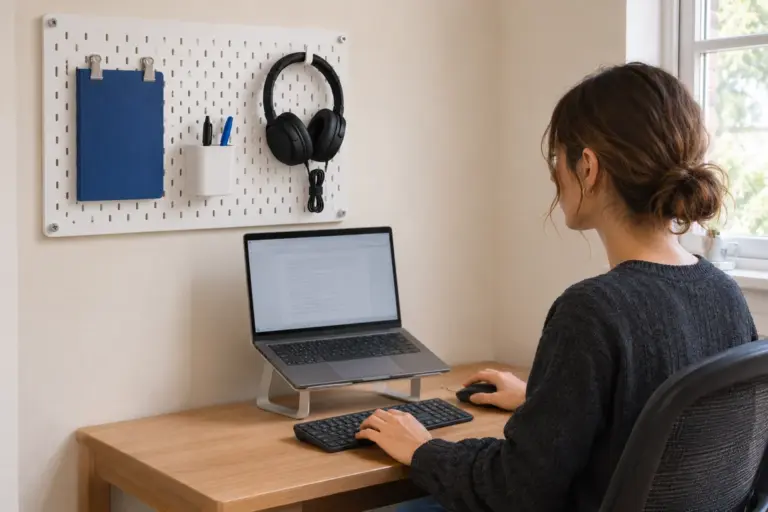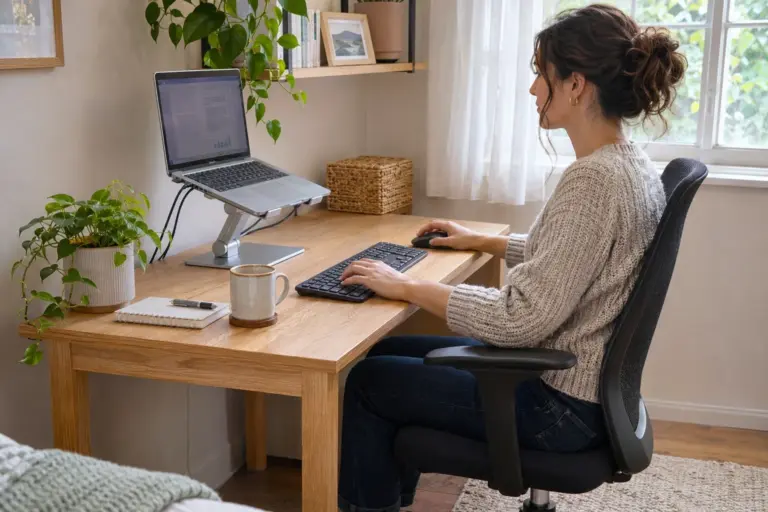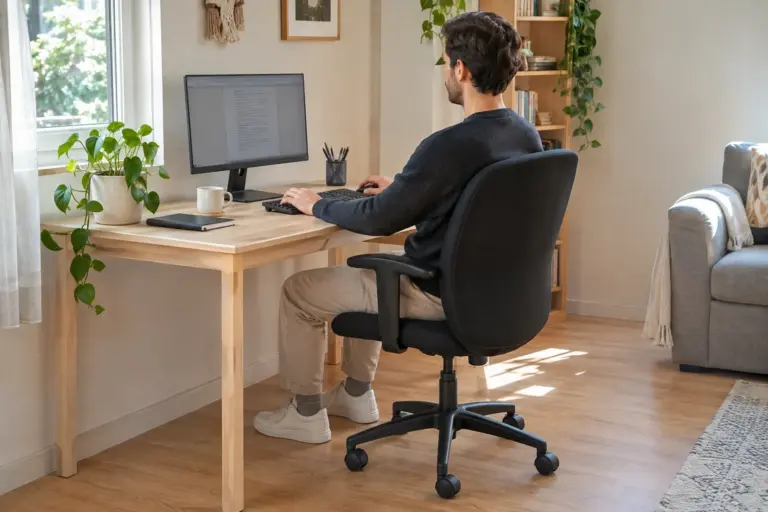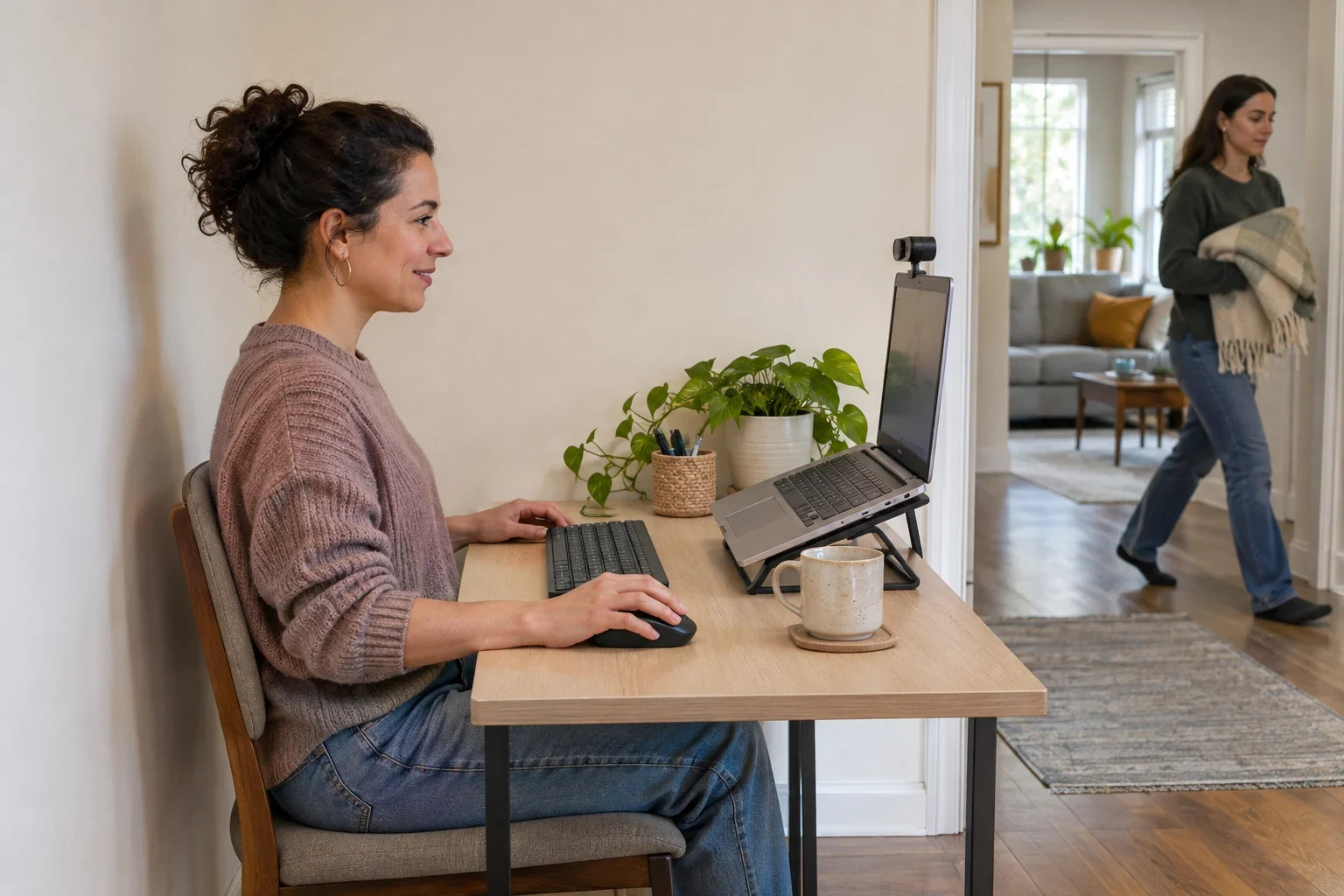
The best-looking wall in a shared room is not automatically the best place for a video call. The camera may show the doorway behind your chair, private papers on a shelf, or someone crossing the room. Start with what the selected camera actually sees, then choose a workable direction for the whole seated setup.
You may need to change an angle rather than buy a backdrop. A plain section of wall behind you can be useful, but only if the desk, chair, lighting, and ordinary household route still work in that position. Judge the room and the picture together.
Open the Actual Camera Preview First
Use the device and meeting application you intend to use. Select the correct camera before judging the background: a laptop camera and an external camera can show different parts of the same room. Sit where you normally sit, with the screen, keyboard, and mouse arranged for actual work.
For the current Zoom desktop app, the official video-testing guidance describes opening your profile picture, choosing Settings, and selecting Video & effects. Its preview shows the currently selected camera, with another camera available to choose if one is connected. This desktop settings route lets you inspect the view before a meeting; other applications and devices have their own controls.
Look at the full rectangle, including its corners and the area above your head. Notice doors, mirrors, shelves, and objects close to either edge. A room can look orderly from your chair while the camera includes a different and less intentional portion of it.
Compare Two Directions with Normal Room Use
Sketch the camera, your seated position, and the route other people use through the room. Then ask what sits behind you from the camera's point of view. Your own view across the desk is the opposite direction and can be misleading when choosing a background.
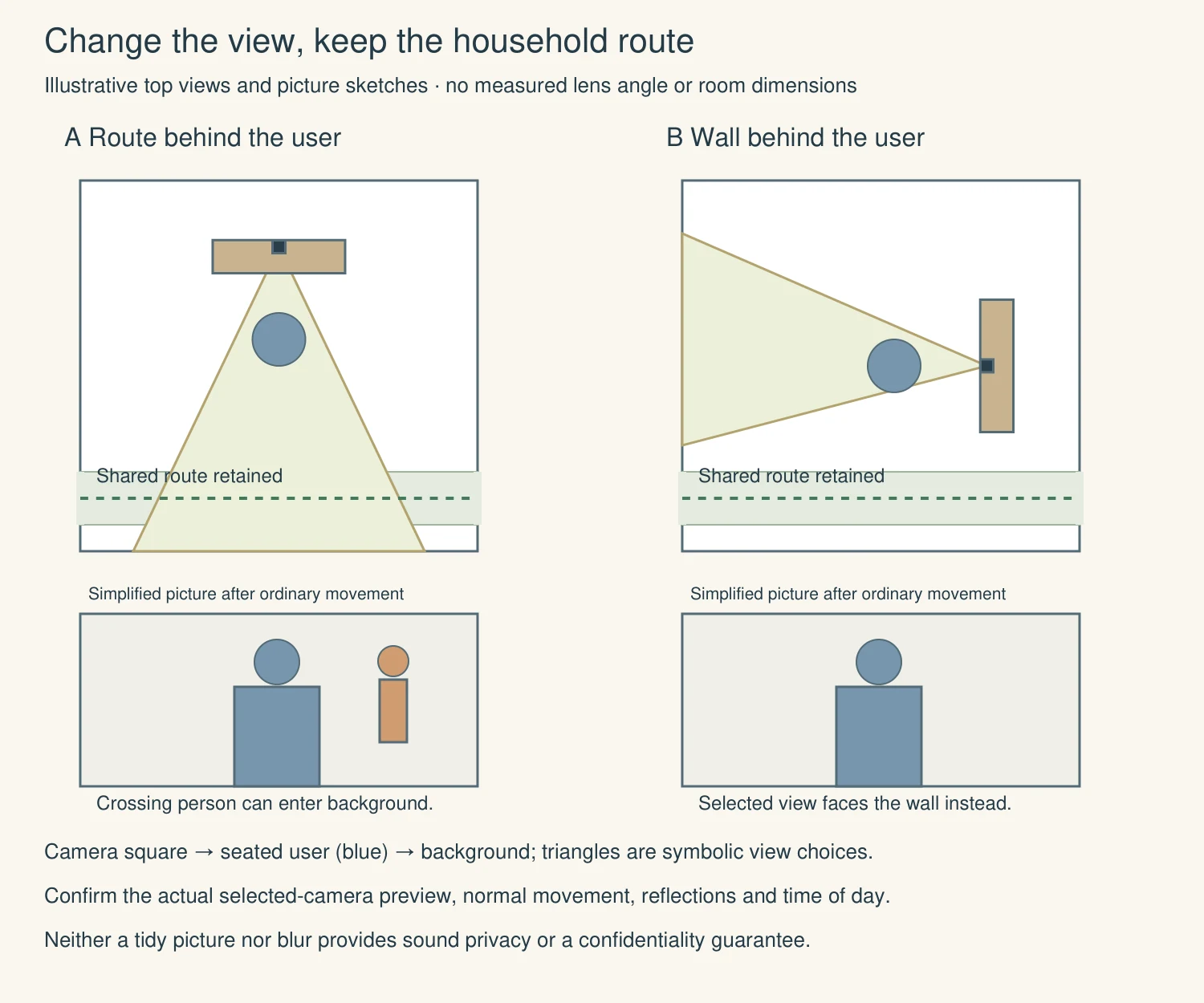
In the illustration's first arrangement, the camera looks toward the seated person and a crossing route beyond them. Someone using that route can enter the background even though the desk itself leaves the route clear. In the second arrangement, the workstation changes direction so a wall is behind the seated person, while the shared route remains elsewhere in the room.
The triangles are simplified illustrations of selected views, not measured lens angles or specifications for a particular webcam. The second arrangement only works if your actual preview excludes the relevant crossing area throughout normal use. Do not treat a sketch or a cropped still as proof of what another camera will show.
Move the Whole Working Position Coherently
Try a different workstation direction where the room permits it. Keep the display in front of you and the inputs usable instead of twisting your body to preserve a flattering picture. Check your chair's occupied position and the room needed to stand up and leave. The background should not require sitting unnaturally close to a wall.
Keep the shared route available. A screen or curtain that blocks the doorway is a poor trade for a plain picture. Before moving furniture, check its handling and installation requirements, existing connections, and where cables will run afterward. Do not drag a powered setup across the room or stretch its charging lead across the household path.
You may find that the original desk location is the only practical one. In that case, work on the view available there: remove private objects from the visible area, agree on a quieter call period, or choose an appropriate camera-off arrangement when necessary. A room does not have to become a permanent studio to support an occasional call.
Check the Background While You Move
Use your ordinary seated movements in the preview. Lean back, reach for the notebook you use, and return to the keyboard. Check whether a previously hidden object appears beside your shoulder or whether moving the laptop screen changes the top edge of the frame. A composition that works only while you hold still is difficult to maintain.
If appropriate, ask another household member to walk their normal route while you watch the preview. They should not need to squeeze behind your chair or change how they use the doorway. Agree on the call arrangement with the people sharing the space rather than assuming an apparently empty room will stay empty.
Inspect reflections too. A mirror or reflective cabinet can show a different part of the room from the wall immediately behind you. Move or cover private objects appropriately, then recheck the actual picture instead of relying on an assumed out-of-frame position.
Use Effects as Presentation Choices
Background blur or replacement may be available in your application, but it should not be the only reason sensitive material remains behind you. Microsoft's Teams guidance explicitly notes that these effects may not prevent sensitive information from being visible to others. Feature availability also depends on the device and environment.
If you use an effect, inspect the preview with that effect selected and repeat your ordinary movements. Remove information that should not be visible rather than depending on the effect to conceal it. A tidy camera background also does not provide sound privacy or stop someone from overhearing the conversation.
Check the picture at the time you normally call. If your face is difficult to see or a bright window dominates the view, try the available curtain, blind, room light, or a workable change of direction and inspect the result again. There is no need to assume a new light or webcam is required before testing the existing setup.
Leave a Repeatable Call Setup
Record a few practical details: the table position, selected camera, screen angle, and which background objects need putting away. If the room serves another purpose afterward, restore it without leaving equipment in the walkway or private work on display.
Before the next call, open the preview again. A different device, moved chair, reopened door, or changed lighting can alter the picture. Keep the reset small enough to repeat: working position, visible background, household route, connections, and current preview. That routine is more useful than a background that looked right only once.